GitHub Copilot – Full Guide, Configuration and New Features 2026
May 2026
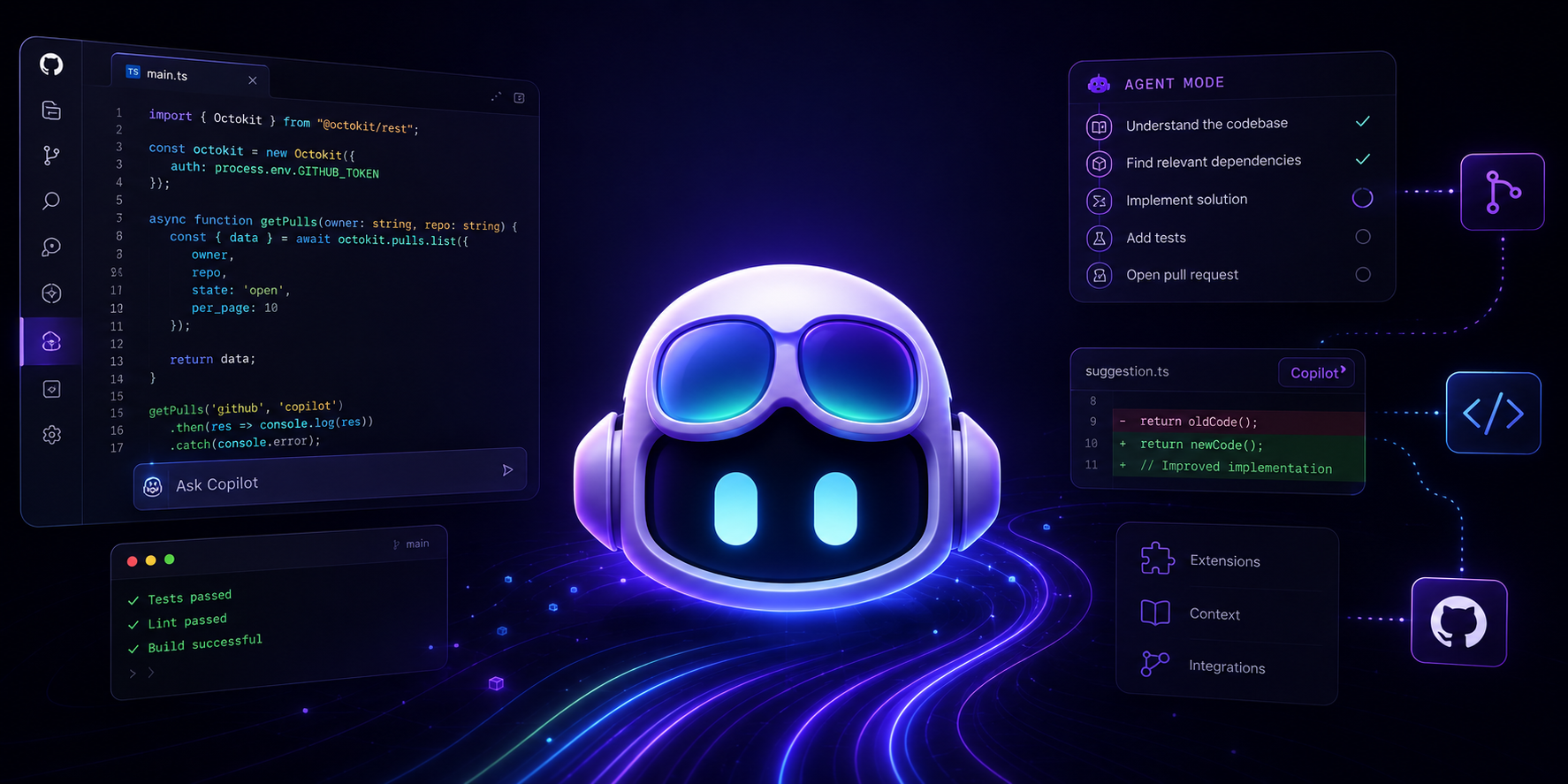
GitHub Copilot is the oldest and most widely deployed AI programming assistant. Launched in 2021 as a simple code completion system, it has evolved over the years into something far more complex: an agentic platform deeply woven into the GitHub ecosystem, operating in over a dozen editors simultaneously and capable of independently implementing tasks from GitHub Issues and opening Pull Requests.
This article is a detailed overview of Copilot's current capabilities – with particular emphasis on working in VS Code and PyCharm (JetBrains), the agent configuration system (instructions, skills, hooks, prompt files), and the new features of 2026.
Where GitHub Copilot Works
This is one of Copilot's most important advantages over the competition – it works almost everywhere:
| Environment | Code Completion | Chat | Agent Mode |
|---|---|---|---|
| VS Code | ✓ | ✓ | ✓ (full) |
| PyCharm / JetBrains IDEs | ✓ | ✓ | ✓ (in development) |
| Visual Studio | ✓ | ✓ | ✓ |
| Neovim | ✓ | – | – |
| Eclipse | ✓ | ✓ | Partial |
| Xcode | ✓ | ✓ | Partial |
| GitHub.com | – | ✓ | ✓ (cloud) |
| Copilot CLI | – | ✓ | ✓ |
| GitHub Mobile | – | ✓ | Issue assignment |
No other tool in this category offers such broad editor coverage. Cursor works only as a standalone editor; Claude Code and Codex CLI work only in the terminal. You install Copilot as a plugin for your current environment and keep all your settings, extensions, and keyboard shortcuts unchanged.
Copilot in VS Code – The Feature Hub
VS Code is the editor where Copilot is most fully featured. All new capabilities appear here first.
Code Completion
Classic inline completion – it appears automatically while typing; you accept it with Tab. But it is no longer just the next line:
- Multi-line completions – entire blocks of code, functions, classes.
- Next Edit Suggestions (NES) – Copilot predicts which other place in the file is likely to need a change after what you just wrote, and proposes an edit elsewhere (with a directional indicator in the gutter).
- Ghost text – suggestions visible as gray text, without interrupting typing.
Copilot Chat
A chat window alongside the editor – you can talk about code, ask for explanations, refactoring, tests, documentation.
Key chat mechanisms:
# contexts:
- #file:name.py – include a specific file in the context.
- #selection – currently selected fragment.
- #codebase – semantically search the entire codebase.
- #terminalLastCommand – output of the last terminal command.
- #terminalSelection – selected text in the terminal.
- #problems – current errors and warnings from the Problems panel.
- #testFailure – details of failed tests.
Slash commands (/):
- /explain – explain the selected code.
- /fix – fix an error or selected problem.
- /tests – generate unit tests.
- /doc – add documentation.
- /clear – clear the chat history.
- /new – start a new project or file.
- /help – list of available commands.
@ – Chat Participants:
- @workspace – agent that understands the entire project (local files, git, structure).
- @github – agent with access to GitHub (Issues, PRs, code on github.com).
- @vscode – questions about VS Code settings and features.
- @terminal – help with terminal commands.
Agent Mode in VS Code
Agent Mode is a mode in which Copilot independently executes a sequence of actions without requiring your confirmation at every step. You open it with the toggle in the Copilot Chat window.
In Agent Mode, Copilot can:
- Read and write files (with your permission or automatically).
- Run commands in the terminal.
- Install packages.
- Run tests and fix errors.
- Iterate on results until a correct solution is reached.
Auto-approve – you can configure which types of actions are approved automatically (e.g., file edits yes, network commands – no).
Copilot in PyCharm and JetBrains IDEs
PyCharm, IntelliJ IDEA, WebStorm, GoLand, Rider and other JetBrains IDEs share a common GitHub Copilot plugin. In 2026, several significant changes were introduced.
Installation
- Open Settings → Plugins → Marketplace.
- Search for "GitHub Copilot."
- Install and restart the IDE.
- Sign in with your GitHub account via
Tools → GitHub Copilot → Sign In.
Code Completion in JetBrains
Works analogously to VS Code – gray ghost text while typing, accepted with Tab. In PyCharm, completion is heavily optimized for Python: it understands type hints, docstrings, decorators, and Django/FastAPI patterns.
Next Edit Suggestions (NES) – available since 2026 in JetBrains. Enable via:
Settings → GitHub Copilot → Completions → Enable Next Edit Suggestions
The new NES version supports:
- Inline edit previews (preview of the change before accepting, directly in the editor).
- Far-away edits with a directional indicator in the gutter (when the suggested change is screens away).
Chat in JetBrains
You open the Copilot Chat panel via the icon in the right sidebar or with a keyboard shortcut. It supports the same #-contexts and /-commands as VS Code, with minor differences in availability.
Inline Chat (new in 2026!)
Inline Agent Mode is now in public preview for JetBrains IDEs (April 2026). This is a breakthrough change.
Previously, agent mode worked exclusively in the side chat panel. Now you can invoke it directly in the editor:
- Shortcut:
Shift+Ctrl+I(Windows/Linux) orShift+Cmd+I(Mac). - Alternatively: right-click → Open Inline Chat, or click the icon in the gutter.
After opening Inline Chat, you switch it to agent mode. The agent can now:
- Edit files without leaving the current context.
- Run the terminal from the inline view.
- Perform multi-step tasks directly from the cursor position.
Note: For Business and Enterprise plans, an administrator must enable the Editor preview features policy before this feature becomes available.
Auto-Approve in JetBrains (new in 2026)
A major improvement for Power Users. Configure in Settings → GitHub Copilot → Chat → Auto Approve:
- Global Auto Approve – automatically approves all tool calls in all workspaces (file edits, terminal commands, external tools). Use with care.
- Auto-approve commands not covered by rules – default approval of terminal commands that do not match any rule.
- Auto-approve file edits not covered by rules – default approval of file edits outside of rules.
This allows the agent to work smoothly without constantly clicking "Approve" at every operation.
/memory Slash Command
A new shortcut in JetBrains IDEs (2026) – typing /memory in the chat window opens the agent instruction file settings directly (AGENTS.md, CLAUDE.md). Quick access to configuration without searching through Settings.
Agent Configuration System – How to "Teach" Copilot Your Project
This is the heart of this article. GitHub Copilot has an extensive configuration file system that allows you to precisely shape agent behavior – similar to how Cursor has its rules and skills.
1. Custom Instructions – .github/copilot-instructions.md
Project file: .github/copilot-instructions.md
This is the most important configuration file. It is automatically loaded into every chat and every agent session in the repository. It acts as a global system prompt for the entire project.
Support: VS Code ✓, Visual Studio ✓, JetBrains ✓ (preview), GitHub.com ✓, Copilot CLI ✓
Example content:
# Project Instructions

## Technology Stack
- Backend: FastAPI 0.115 + Python 3.12
- Database: PostgreSQL with SQLAlchemy 2.0 (async)
- Tests: pytest + pytest-asyncio

## Coding Standards
- Type everything: use type hints everywhere.
- Pydantic v2 models for input and output validation.
- Error handling via custom exceptions, not HTTP codes directly.
- Google-style docstrings.

## Conventions
- File names: snake_case
- Classes: PascalCase
- Constants: UPPER_SNAKE_CASE
- API endpoints: plural nouns, e.g. /users, /orders

## Security
- Never log tokens, passwords, or PII data.
- All endpoints requiring auth must use the @require_auth decorator.
Limits: Copilot code review reads only the first 4,000 characters. Optimally keep the file below ~1,000 lines.
2. Path-Specific Instructions
Location: .github/instructions/NAME.instructions.md
Rules active only for files matching a specified pattern. The equivalent of globs in Cursor's rules.
Support: VS Code ✓, Visual Studio ✓, JetBrains ✓ (preview)
Example files:
.github/instructions/python-tests.instructions.md:
---
applyTo: "tests/**/*.py"
---
# Rules for Tests

- Use fixtures instead of setUpClass.
- Test names: test_[what]_[condition]_[expected_result]
- Each test tests one thing (Single Responsibility).
- Mock external services with pytest-mock.
- Assertions with meaningful error messages.
.github/instructions/api-routes.instructions.md:
---
applyTo: "app/api/**/*.py"
---
# Rules for API Endpoints

- Every endpoint has a response_model.
- Return errors via HTTPException with a readable detail.
- Document parameters via Field() with description.
- Log every request at the DEBUG level.
3. Prompt Files – Reusable Prompt Templates
Location: .github/prompts/NAME.prompt.md
Support: VS Code ✓, Visual Studio ✓, JetBrains ✓ (preview)
Prompt files are something between macros and templates – ready-made, parameterized prompts that you can invoke repeatedly with different inputs. They do not activate automatically – you call them manually via # in the chat or through the picker.
Example:
.github/prompts/review-security.prompt.md:
---
description: Security review of selected code
---

Conduct a security review of the following code:

#selection

Check for:
1. SQL Injection and other injection attacks
2. Exposure of sensitive data in logs or responses
3. Missing input validation
4. Authentication and authorization issues
5. OWASP Top 10 vulnerabilities

For each issue: describe the risk and provide a specific fix.
.github/prompts/generate-migration.prompt.md:
---
description: Generate an Alembic migration for a new model
---

Based on the SQLAlchemy model below, generate an Alembic migration:

#file:${modelFile}

The migration should:
- Have a meaningful name describing the change.
- Include both upgrade() and downgrade().
- Handle foreign key relationships in the correct order.
4. Agent Skills – Specialized Knowledge on Demand
Project location: .github/skills/NAME/SKILL.md
Personal location: ~/.copilot/skills/NAME/SKILL.md or ~/.agents/skills/NAME/SKILL.md
Support: VS Code ✓, GitHub.com ✓, Copilot CLI ✓ (JetBrains – not yet)
Skills are folders with instructions, scripts, and resources that Copilot loads automatically when it determines they are relevant to the current task. This is exactly the same format as in Cursor – SKILL.md with a YAML front matter.
Format:
---
name: deploy-staging
description: Staging deployment procedure. Use when the user asks about deployment, staging, or release.
---

# Staging Deployment

## Pre-deployment Checklist
- [ ] Tests pass locally: `pytest tests/`
- [ ] No open blocking PRs
- [ ] Environment variables updated in Vault

## Deployment Steps
\`\`\`bash
# 1. Build and push image
docker build -t myapp:staging .
docker push registry.example.com/myapp:staging

# 2. Update deployment
kubectl set image deployment/myapp myapp=registry.example.com/myapp:staging -n staging

# 3. Check status
kubectl rollout status deployment/myapp -n staging
\`\`\`

## Post-Deployment Verification
- Check health endpoint: `curl https://staging.example.com/health`
- Review logs for the last 5 minutes: `kubectl logs -n staging -l app=myapp --since=5m`
Skills can also contain helper scripts:
.github/skills/
  db-schema/
    SKILL.md           # Instructions for the agent
    schema.sql         # Current schema – the agent can read it
    migrations/        # Migration history
  deploy/
    SKILL.md
    scripts/
      health-check.sh  # Verification script
      rollback.sh
5. Custom Agents – Specialized Agent Personas
Project location: .github/agents/AGENT-NAME.md
Organizational location: .github-private repository
Support: VS Code ✓, GitHub.com ✓, JetBrains ✓ (preview), Copilot CLI ✓
Custom Agents are entirely separate agent personas with their own instructions, tool restrictions, and context. You select them from the dropdown in the chat interface.
Example use cases:
- React Reviewer Agent – an agent specializing exclusively in reviewing React code, with its own rules.
- Security Auditor – a read-only agent (cannot edit files), focused on security.
- Documentation Writer – an agent that only writes documentation, without terminal access.
- Data Migration Agent – an agent with database access via MCP, but without production access.
Agent file format:
---
name: security-auditor
description: Security audit agent - read-only, no code editing
tools:
  - read_file
  - search_codebase
  - run_terminal  # allowed: scanners, linters
  - deny: write_file  # denied: file editing
---

# Security Auditor

You are a security audit agent. Your role is **analysis and reporting only** – do not modify any code.

## Your Tasks
- Search for OWASP Top 10 vulnerabilities.
- Check for sensitive data exposure.
- Analyze authentication configurations.
- Generate reports with threat prioritization.

## Report Format
- Critical (CVSS 9-10): immediate action required
- High (CVSS 7-8): fix in the current sprint
- Medium (CVSS 4-6): fix in the next sprint
- Low (CVSS 1-3): document and monitor
6. Hooks – Agent Event Automation
Location: .github/hooks/NAME.json
Support: VS Code ✓ (preview), GitHub.com ✓, Copilot CLI ✓ (JetBrains – not yet)
Hooks are shell scripts that run automatically at specific moments in the agent lifecycle. Analogous to the hook system in Cursor.
Available events:
| Event | When |
|---|---|
sessionStart |
Beginning of agent session |
sessionEnd |
End of session |
userPromptSubmitted |
After the user submits a prompt |
preToolUse |
Before a tool call (can block it) |
postToolUse |
After a tool call |
errorOccurred |
When the agent encounters an error |
agentStop |
When the main agent finishes work |
subagentStop |
When a subagent finishes work |
Example – automatic formatting after file edit:
{
  "hooks": [
    {
      "event": "postToolUse",
      "tool": "write_file",
      "command": "bash .github/hooks/format-file.sh"
    }
  ]
}
#!/bin/bash
# .github/hooks/format-file.sh
FILE=$(echo "$HOOK_INPUT" | jq -r '.path')
if <span class="text-amber-500/50" title="Nieznany link">[["$FILE" =~ \.py$]]</span>; then
ruff format "$FILE"
ruff check --fix "$FILE"
elif <span class="text-amber-500/50" title="Nieznany link">[["$FILE" =~ \.(ts]]</span>; then
npx prettier --write "$FILE"
fi
Example – secret scanning before operations:
{
  "hooks": [
    {
      "event": "preToolUse",
      "tool": "write_file",
      "command": "bash .github/hooks/scan-secrets.sh",
      "failClosed": true
    }
  ]
}
7. MCP – Integrations with External Systems
Location: mcp.json (path depends on IDE)
Support: VS Code ✓, JetBrains ✓, Visual Studio ✓, Eclipse ✓, Xcode ✓, GitHub.com ✓, CLI ✓
MCP works identically to Cursor – Copilot can connect to external services through standard protocols. A GitHub MCP server (access to Issues, PRs, code on GitHub.com) is built in.
In VS Code, configuration via .vscode/mcp.json or global VS Code settings:
{
  "mcpServers": {
    "github": {
      "type": "stdio",
      "command": "gh",
      "args": ["mcp", "serve"]
    },
    "postgres": {
      "type": "stdio",
      "command": "npx",
      "args": ["-y", "@modelcontextprotocol/server-postgres", "postgresql://localhost/mydb"]
    },
    "playwright": {
      "type": "stdio",
      "command": "npx",
      "args": ["-y", "@playwright/mcp"]
    }
  }
}
In Copilot CLI you can add an MCP server via:
gh copilot mcp add
Or by editing ~/.copilot/mcp-config.json.
Copilot Cloud Agent – Autonomous Tasks from GitHub Issues
This is a feature that Cursor and Antigravity do not have in this form. Copilot Cloud Agent is an asynchronous agent integrated directly into GitHub.com – it works like a team member assigned to tickets.
How It Works
- You create or have an issue on GitHub.
- You assign it to Copilot (via the "Assignees" dropdown or Copilot Chat).
- The agent analyzes the issue and the repository.
- It creates a working branch.
- It plans and implements the solution.
- It runs tests and its own code review.
- It runs security scanning (code scanning, secret scanning, dependency checks).
- It opens a Pull Request and marks you as the reviewer.
You can track progress in real time through the Sessions panel on GitHub.com or through Copilot Chat in the IDE.
Ways to Assign a Task
- GitHub.com – the Assignees dropdown in an issue.
- GitHub Mobile – from the mobile app.
- Copilot Chat in IDE – "@github create a PR implementing issue #123."
- GitHub CLI –
gh copilot suggest --issue 123. - Raycast – launcher with GitHub integration.
Cloud Agent New Features (2026)
Work on a branch without an immediate PR – the agent can work on a branch and let you review the diff before opening a PR.
Implementation plans – you can ask the agent for a plan before it starts coding: "Before you begin, show me a plan for how you will implement this."
Deep Research – the agent can conduct a thorough analysis of the codebase and answer complex questions without introducing any changes.
Self-Review – the agent automatically reviews its own code through Copilot Code Review and iterates on the results before opening a PR.
Faster startup – since late April 2026, Cloud Agent starts 20% faster thanks to support for Actions custom images.
Configuring Cloud Agent via Files
Cloud Agent respects the same files as the agent in the IDE:
- .github/copilot-instructions.md – global instructions.
- .github/skills/ – domain skills.
- .github/hooks/ – automatic actions.
- AGENTS.md – declarative configuration (inter-tool format).
AGENTS.md – The Inter-Tool Standard
The AGENTS.md file placed in the root directory of the project acts as a shared configuration for different AI tools. Copilot, Cursor, and Claude Code read it automatically.
This is particularly valuable in environments where different team members use different tools – all agents follow the same rules.
# AGENTS.md

## Project
Backend API for an e-commerce application. Python 3.12, FastAPI, PostgreSQL.

## Coding Principles
- Write readable code; optimize only when a profiler confirms it is needed.
- Every public function has a docstring.
- Always add tests for new endpoints.

## Communication Language
Respond in English; write code in English (variable names, comments, commits).

## Security
- Never put secrets in code.
- Use environment variables via pydantic-settings.
- All data-modifying endpoints require authentication.
Copilot CLI – Working from the Terminal
Copilot CLI (gh copilot) is a GitHub CLI extension that enables working with the agent from the command line.
Installation:
gh extension install github/gh-copilot
Key commands:
# Translate a shell command into natural language
gh copilot explain "git rebase -i HEAD~3"

# Suggest a command from a description
gh copilot suggest "copy files from the last week to the archive"

# Run the agent on a task
gh copilot agent "add email validation to the registration form in users/forms.py"

# Session management
gh copilot session list
gh copilot session resume <id>

# MCP
gh copilot mcp add
gh copilot mcp list
Slash commands in Copilot CLI:
- /clear – clear the session context.
- /session – manage the session.
- /add-dir – add a directory to the context.
- /list-dirs – display the context.
- /help – list of commands.
- /delegate – delegate a task to a subagent.
- /agent – select an agent.
- /mcp – manage MCP.
Models Available in GitHub Copilot (May 2026)
GitHub Copilot supports multiple models – you can switch between them depending on the task.
| Model | Use Case |
|---|---|
| GPT-5.5 (GA since April 2026) | Latest OpenAI flagship |
| GPT-5.4 | Faster, good balance of quality and speed |
| GPT-5 mini | Lightweight, for simple tasks, free plan |
| Claude Sonnet 4.6 | Anthropic alternative, excellent for analysis |
| Claude Opus 4.6 | Largest Claude, Pro+ plans |
| Gemini 3 Pro | Google model, available in selected plans |
| Haiku 4.5 | Lightweight Anthropic model, free plan |
Auto model selection – available for all plans since March 2026. Copilot itself selects the optimal model based on context and task complexity, without your intervention.
Pricing and Plans (May 2026)
| Plan | Price | Code Completion | Chat/Agent | Coding Agent |
|---|---|---|---|---|
| Free | $0 | 2,000/month | 50 req/month | Limited |
| Pro | $10/month | Unlimited | Standard | Yes |
| Pro+ | $39/month | Unlimited | Extended | Yes + Claude Opus |
| Business | $19/user/month | Unlimited | Standard | Yes + admin |
| Enterprise | $39/user/month | Unlimited | Extended | Full + compliance |
Important change from June 1, 2026: GitHub is switching to usage-based billing. Details for the free plan may change.
From June 1, 2026: Copilot code review will consume GitHub Actions minutes.
New Features of 2026 – Summary
General Features
- GPT-5.5 available for all paid plans (April 2026).
- Auto model selection – Copilot selects the model automatically (GA for all plans).
- Usage-based billing will replace subscription billing (from June 2026).
VS Code
- Full Agent Mode with granular auto-approve settings.
- Agent hooks in public preview.
- Custom Agents, Subagents, Agent Skills – Generally Available.
JetBrains / PyCharm
- Inline Agent Mode in public preview (April 2026) – agent directly in the editor.
- Next Edit Suggestions with inline preview and far-away edit indicators.
- Global Auto-Approve with granular rules.
- AGENTS.md and CLAUDE.md automatically loaded into context.
/memoryslash command for quick access to instruction files.- Improved chat, better stability, faster history rendering.
Cloud Agent
- Self-review of own changes before opening a PR.
- Implementation plans before coding.
- Deep Research of the codebase without introducing changes.
- Work on a branch without an immediate PR.
- 20% faster startup thanks to Actions custom images.
- Security scanning built into the workflow (code scanning, secrets, dependencies).
Example Project Configuration Structure
my-project/
├── .github/
│   ├── copilot-instructions.md         # Global project instructions
│   ├── instructions/
│   │   ├── python-tests.instructions.md    # Rules for tests
│   │   ├── api-endpoints.instructions.md   # Rules for API
│   │   └── migrations.instructions.md      # Rules for DB migrations
│   ├── prompts/
│   │   ├── security-review.prompt.md       # Security audit template
│   │   ├── generate-test.prompt.md         # Test generation template
│   │   └── write-migration.prompt.md       # Alembic migration template
│   ├── skills/
│   │   ├── deploy/
│   │   │   ├── SKILL.md
│   │   │   └── scripts/health-check.sh
│   │   └── db-operations/
│   │       ├── SKILL.md
│   │       └── schema.sql
│   ├── agents/
│   │   ├── security-auditor.md             # Read-only security agent
│   │   └── docs-writer.md                  # Documentation agent
│   └── hooks/
│       └── format-on-edit.json             # Auto-format on edit
├── AGENTS.md                               # Inter-tool configuration
└── .vscode/
    └── mcp.json                            # MCP server configuration
Comparison: GitHub Copilot vs Antigravity vs Cursor
Philosophy and Paradigm
GitHub Copilot grew from an assistant – its strength is integration with the GitHub ecosystem and editor flexibility. Cloud Agent works asynchronously: you assign a task and come back to a PR.
Antigravity was designed around parallel, autonomous agents. Its strength is the agent orchestra and visual evidence of work (artifacts). It operates in synchronous mode – you observe progress in real time.
Cursor is the editor with the deepest AI integration. It does not require GitHub – it works locally. Its strength is precision (Tab Completion, semantic search) and the ability to deeply configure.
Editor Support
| GitHub Copilot | Antigravity | Cursor | |
|---|---|---|---|
| VS Code | ✓ (plugin) | ✓ (own editor) | ✓ (own editor) |
| PyCharm / JetBrains | ✓ (plugin) | ✗ | ✗ |
| Neovim / Vim | ✓ (plugin) | ✗ | ✗ |
| Visual Studio | ✓ (plugin) | ✗ | ✗ |
| Xcode | ✓ (plugin) | ✗ | ✗ |
| Terminal / CLI | ✓ (Copilot CLI) | ✗ | ✓ (Cursor CLI) |
Agent Configuration System
| Mechanism | GitHub Copilot | Antigravity | Cursor |
|---|---|---|---|
| Global instructions | copilot-instructions.md |
AGENTS.md / GUI rules |
.cursor/rules/*.mdc |
| Per-file instructions | .github/instructions/*.md |
– | globs in rules |
| Prompt templates | Prompt Files (.prompt.md) |
Workflows | – |
| Domain skills | Agent Skills (SKILL.md) |
AgentKit 2.0 (40+ ready-made) | Skills (SKILL.md) |
| Event hooks | Hooks (.github/hooks/) |
Terminal policies | Hooks (hooks.json) |
| Custom agent personas | Custom Agents (.md) |
16 specialized agents | Internal subagents |
| MCP | ✓ (mcp.json) | ✓ (1,500+ connectors, GUI) | ✓ (mcp.json) |
| AGENTS.md | ✓ | ✓ (native) | ✓ |
Configuration Depth
Cursor > GitHub Copilot > Antigravity
Cursor provides the deepest control over agent behavior (extensive hook, skill, and rule system with glob variables). GitHub Copilot is more structured – each configuration file type has a clearly defined role. Antigravity favors ready-made solutions and GUI-based configuration over files.
Browser Automation
| GitHub Copilot | Antigravity | Cursor | |
|---|---|---|---|
| Built-in | ✗ | ✓ (Browser Sub-Agent) | ✗ |
| Via MCP | ✓ (Playwright MCP) | ✓ | ✓ |
Antigravity has a built-in Browser Sub-Agent – no configuration required. Copilot and Cursor can control the browser via the Playwright MCP server, but this requires additional setup.
GitHub Integration
Copilot has no competition here:
| GitHub Copilot | Antigravity | Cursor | |
|---|---|---|---|
| Issue assignment | ✓ (native) | ✗ | ✗ |
| Automatic PRs | ✓ (Cloud Agent) | ✗ | Via gh CLI |
| Code Review on PRs | ✓ | ✗ | ✗ |
| Security scanning on PRs | ✓ | ✗ | ✗ |
| GitHub Actions | ✓ | ✗ | ✗ |
| Issues integration | ✓ | Via MCP | Via MCP |
Multi-Agent and Parallelism
| GitHub Copilot | Antigravity | Cursor | |
|---|---|---|---|
| Subagents | ✓ (runtime) | ✓ (16 specialized) | ✓ (types: explore, shell...) |
| Manager Surface | ✗ | ✓ | ✗ |
| A2A (remote agents) | ✗ | ✓ | ✗ |
| Artifacts (plan, screenshots) | Partial (plan) | ✓ (full system) | ✗ |
Price and Availability
| GitHub Copilot | Antigravity | Cursor | |
|---|---|---|---|
| Free plan | ✓ (50 req + 2,000 comp.) | ✓ (Gemini 3.1 Pro, every 5h) | ✓ (200 fast req/month) |
| Cheapest paid | $10/month (Pro) | $19/month (Pro) | $20/month (Pro) |
| Without GitHub account | ✗ | ✓ | ✓ |
Who Should Use What?
| Situation | Recommended |
|---|---|
| I use PyCharm and don't want to change | GitHub Copilot |
| I use Neovim or Visual Studio | GitHub Copilot |
| My workflow is deeply based on GitHub Issues | GitHub Copilot |
| I need governance, audit, compliance | GitHub Copilot Enterprise |
| I want autonomous agents without configuration | Antigravity |
| I want E2E tests without additional configuration | Antigravity |
| Code completion and editing precision matter to me | Cursor |
| I want to deeply configure agent behavior | Cursor |
| I work in multiple editors simultaneously | GitHub Copilot |
| I'm building solo with minimum configuration | Antigravity |
Many experienced developers combine all three: GitHub Copilot for JetBrains work and PR management, Cursor for intensive coding in VS Code, Antigravity for design and larger agent tasks. The free plans from Copilot and Antigravity allow testing both without any cost.
Sources and Further Reading
-
Copilot customization cheat sheet – overview of all configuration mechanisms: custom instructions, prompt files, agents, skills, hooks, MCP.
docs.github.com/en/copilot/reference/customization-cheat-sheet -
Adding repository custom instructions – how to create and use
.github/copilot-instructions.mdand path-specific instructions.
docs.github.com – Add Repository Instructions -
Adding agent skills for GitHub Copilot – creating skills, SKILL.md format, locations.
docs.github.com – Agent Skills -
Customize agent workflows with hooks – hook events, JSON format, examples.
docs.github.com – Hooks -
About GitHub Copilot cloud agent – description of the Coding Agent, how to assign tasks, self-review, implementation plans.
docs.github.com – Coding Agent -
Inline agent mode in preview for JetBrains IDEs – April 2026 changelog: inline agent, NES enhancements, global auto-approve.
github.blog/changelog – JetBrains Inline Agent Mode -
Major agentic capabilities improvements in GitHub Copilot for JetBrains IDEs – March 2026 changelog: custom agents, subagents, AGENTS.md, /memory.
github.blog/changelog – JetBrains Agentic March 2026 -
GitHub Copilot Plans & Pricing.
github.com/features/copilot/plans -
Use custom instructions in VS Code.
code.visualstudio.com – Custom Instructions
Article written in May 2026. GitHub Copilot is actively developed – the changelog at github.blog/changelog contains up-to-date information on every release.